The GDPR and information security concerns is causing organizations to become more aware of the different privacy settings in macOS and common applications.
Maximum privacy settings should already be default in Europe under GDPR regulations, at least if one is to believe the Irish Computer Society:
“Privacy by Default means that once a product or service has been released to the public, the strictest privacy settings should apply by default, without any manual input from the end user.”
Potentially problematic settings are often enabled by default or enabled if setup screens are skipped as part of an enrollment process. Users can also enable problematic settings if they misunderstand privacy dialog boxes or just want them out of their way and do not understand their content or implications.
While waiting for software companies to implement privacy by default, organizations, especially in Europe, can opt to manage and disable a range of privacy related settings using configuration profiles and scripts in their MDM solution.
Here’s a round-up of current settings that are relevant in macOS and common applications such as Chrome.
macOS Mojave: Siri
Siri will send potentially sensitive data such as your contacts, unintended voice recordings and location data to Apple. Some of it can end up at third parties contracting for Apple. You can prevent this and make Siri run locally instead of uploading data to Apple if you enable enhanced dictation (local voice-to-text conversion) in the Keyboard-Dictation preference pane in System Preferences (if anyone knows how to do this programmatically, please give me a heads up in the comments below).
Siri can be disabled using a configuration profile. Rich Trouton has configuration profiles that will disable Siri, and they work in Mojave.
It is unlikely your users will miss Siri on macOS, as it is not currently as commonly used as on the iPhone.
The checkbox in the Siri preference pane in System Preferences will behave a little strange when disabled, but it works.
Diagnostic, usage and crash data
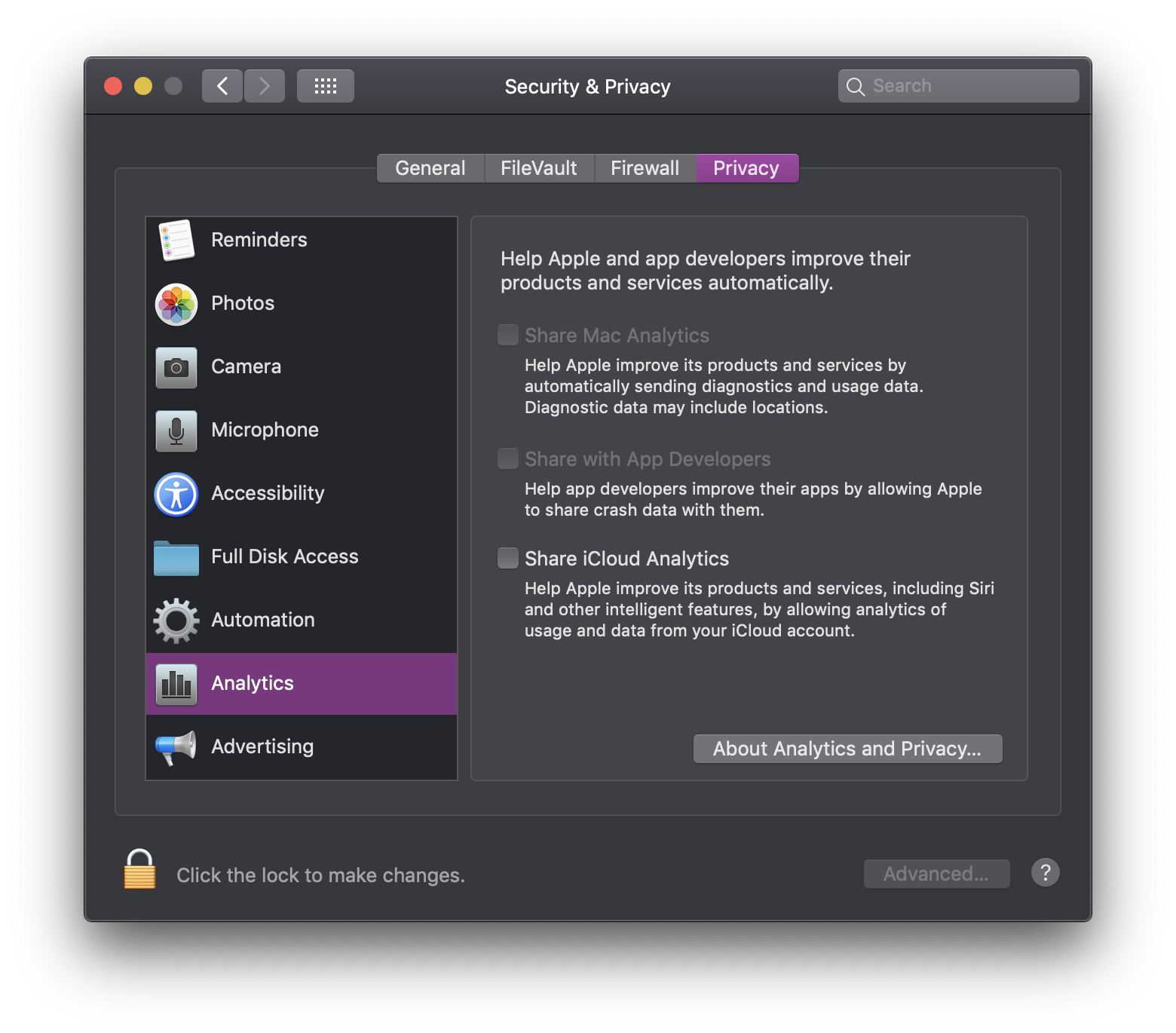
Submission of diagnostic data to Apple and third party developers can be disabled using a configuration profile by setting the allowDiagnosticSubmission key to false in the Restrictions payload (com.apple.applicationaccess). In Jamf, this key is not located in the Restrictions payload, but under Security. You have to download your current Security profile, change the key manually to false and re-upload for it to work. The process is covered in this blog post. This setting is formally supported by Apple, and described on p. 68 in their Configuration Profile Reference.
| <?xml version="1.0" encoding="UTF-8"?> | |
| <!DOCTYPE plist PUBLIC "-//Apple//DTD PLIST 1.0//EN" "http://www.apple.com/DTDs/PropertyList-1.0.dtd"> | |
| <plist version="1.0"> | |
| <dict> | |
| <key>allowDiagnosticSubmission</key> | |
| <false/> | |
| </dict> | |
| </plist> |
Ad Tracking
Can be disabled in Mojave using a configuration profile setting forceLimitAdTracking to true and AD_DEVICE_IDFA to 00000000-0000-0000-0000-000000000000 in the com.apple.AdLib domain. As with Siri, the checkbox in System Preferences will behave a bit strange when setting this preference, but it works.
| <?xml version="1.0" encoding="UTF-8"?> | |
| <!DOCTYPE plist PUBLIC "-//Apple//DTD PLIST 1.0//EN" "http://www.apple.com/DTDs/PropertyList-1.0.dtd"> | |
| <plist version="1.0"> | |
| <dict> | |
| <key>forceLimitAdTracking</key> | |
| <true/> | |
| <key>AD_DEVICE_IDFA</key> | |
| <string>00000000-0000-0000-0000-000000000000</string> | |
| </dict> | |
| </plist> |
Location Services
Skipping setup of location services during first-time setup will disable them. It is possible to disable location services and still set system time automatically by specifying the time zone using a script:
| #!/bin/bash | |
| # Set time zone and enable network time server | |
| sudo /usr/sbin/systemsetup -setusingnetworktime off | |
| sudo /usr/sbin/systemsetup -settimezone "Europe/London" | |
| sudo /usr/sbin/systemsetup -setnetworktimeserver time.euro.apple.com | |
| sudo /usr/sbin/systemsetup -setusingnetworktime on |
This script will provoke a clock synchronization when run, and is suitable for initial configurations if location services is skipped during the enrollment process. However, it isn’t suitable when your users travel unless they are local admins and can change the time zone.
One can also enable location services using a script, if setting them up during enrollment is skipped. [This no longer works as expected on 10.14.6, it seems] Unfortunately this will simultaneously enable a range of potentially problematic default settings. If anyone has figured out how to fine-tune location services sub-settings, or enable them on 10.14.6, please let me know in the comments section below.
iCloud
See p. 67 ff. in Apple’s Configuration Profile Reference for a range of preferences that can be used to prevent uploading of data to iCloud. I highly recommend you disable allowCloudDesktopAndDocuments which is one of the most problematic features in terms of organizational privacy.
Microsoft Office
You can set DiagnosticDataTypePreference to ZeroDiagnosticData and OfficeExperiencesAnalyzingContentPreference, OfficeExperiencesDownloadingContentPreference and OptionalConnectedExperiencesPreference according to your needs, using a config profile – if you are using Office 16.28 or newer. Se Microsoft’s list of preferences for an explanation. In version 16.28, placing restrictions using the latter three will bring up a dialog saying the system administrator has disabled cloud experiences if a user tries to use functionality that is dependent on the preference in question. Setting ZeroDiagnosticData should be unproblematic in terms of functionality, though Microsoft’s documentation is a bit unclear.
If you set the Zero Exhaust mode (not the same as ZeroDiagnosticData), online services might stop working as expected. Paul Bowden from Microsoft goes into more detail in a document on macadmins.software. See my blog post on silent Office 365 upgrade for preferences valid for earlier versions.
Chrome
Chrome’s sync service may upload passwords users use in your organization to Google by default.
If your organization is using G Suite, browser sync can be a good ting. If not, users might connect their private accounts instead, which can be problematic.
There are other features that send the content of browser text fields, URLs and other potentially sensitive data to Google. This can potentially be problematic if your organization is using a web app to enter sensitive information, and accessing the app using Chrome.
The Chrome Enterprise Policy List documents available settings.
Here is a selection of some of the most relevant:
| <?xml version="1.0" encoding="UTF-8"?> | |
| <!DOCTYPE plist PUBLIC "-//Apple//DTD PLIST 1.0//EN" "http://www.apple.com/DTDs/PropertyList-1.0.dtd"> | |
| <plist version="1.0"> | |
| <dict> | |
| <key>PromotionalTabsEnabled</key> | |
| <false/> | |
| <key>WelcomePageOnOSUpdateEnabled</key> | |
| <false/> | |
| <key>MetricsReportingEnabled</key> | |
| <false/> | |
| <key>SpellCheckServiceEnabled</key> | |
| <false/> | |
| <key>UrlKeyedAnonymizedDataCollectionEnabled</key> | |
| <false/> | |
| <key>SafeBrowsingExtendedReportingEnabled</key> | |
| <false/> | |
| <key>CloudPrintSubmit</key> | |
| <false/> | |
| <key>EnableSyncConsent</key> | |
| <false/> | |
| <key>BrowserSignin</key> | |
| <integer>0</integer> | |
| </dict> | |
| </plist> |
Firefox
It is now possible to configure Firefox using configuration profiles. It shouldn’t come as a surprise that Mozilla also makes privacy settings available. These are some of the most relevant:
| <?xml version="1.0" encoding="UTF-8"?> | |
| <!DOCTYPE plist PUBLIC "-//Apple//DTD PLIST 1.0//EN" "http://www.apple.com/DTDs/PropertyList-1.0.dtd"> | |
| <plist version="1.0"> | |
| <dict> | |
| <key>EnterprisePoliciesEnabled</key> | |
| <true/> | |
| <key>DisableFeedbackCommands</key> | |
| <true/> | |
| <key>DisableFirefoxAccounts</key> | |
| <true/> | |
| <key>DisableFirefoxStudies</key> | |
| <true/> | |
| <key>DisablePocket</key> | |
| <true/> | |
| <key>DisableTelemetry</key> | |
| <true/> | |
| <key>EnableTrackingProtection</key> | |
| <dict> | |
| <key>Value</key> | |
| <true/> | |
| <key>Locked</key> | |
| <true/> | |
| </dict> | |
| <key>NetworkPrediction</key> | |
| <false/> | |
| <key>OfferToSaveLogins</key> | |
| <false/> | |
| </dict> | |
| </plist> |
These settings can be used with the enterprise version of Firefox.
For Chrome and Firefox, I did not include settings for site requests for camera, microphone and location access. You may look into modifying those, depending on your experience with them.
You may want to set some of these settings using the undocumented possibility to set them once instead of as forced settings. For details, see Armin Briegel’s book on configuration profiles and plists.
Please comment if you are aware of privacy settings that should have been included.
 SoundSnw