Apple’s Device Enrollment Program (DEP) combined with a MDM solution (such as Jamf) makes it possible for organizations to enroll new macs right out of the box and have their computers automatically set up according to the organization’s requirements.
Getting this right, however, will require testing. A lot of testing. One way to speed up testing is by using virtualization. The last time I checked, VMWare Fusion was the best and fastest option. It isn’t free, but they’ll give you a one month trial, and their pricing is fair.
Others have covered the process before, however, the process has changed slightly because of a bug in VMWare, so here’s an updated tutorial.
To create a macOS Mojave image suitable for testing your DEP workflow, first find a computer that has been decommissioned or is no longer in use, but still enrolled in DEP. Note down its’ serial number. If you don’t have a machine that falls into the category, use the serial of your working DEP-enrolled testing machine.
First download Mojave from the App Store and create an AutoDMG image. The Mojave installer needs to be on an external drive or memory stick for AutoDMG to work. To make the installer always ask which language to use on first run, see my other tutorial.
You’ll also need Homebrew and VMWare Fusion 11.
Having installed Homebrew, install qemu and vfuse:
bash-3.2$ brew install qemu vfuse
To create the image, use the following command (needs to be edited to use correct paths on your system):
| sudo /usr/local/bin/vfuse -i ~/Downloads/osx-10.14.5-18F132.apfs.dmg –use-qemu /usr/local/Cellar/qemu/4.0.0/bin/qemu-img -n "macOS10.14.5" -s C02X225WJHD3 –hw-model MacBookAir7,2 | |
Replace the serial number with the one from your decommissioned DEP machine (make sure it is still in Apple’s systems). I would also recommend changing the hardware model identifier to correspond with the machine you got the serial from. You can look it up at EveryMac.com and check model identifiers and compatibility using MacTracker. It would be sound to use hardware that supports Mojave.
Make a backup of the resulting image and fire it up in VMWare Fusion. Voila! Using this image, you can test a DEP workflow hundreds of times, without having to reinstall or flash a machine, which can be far more time-consuming.
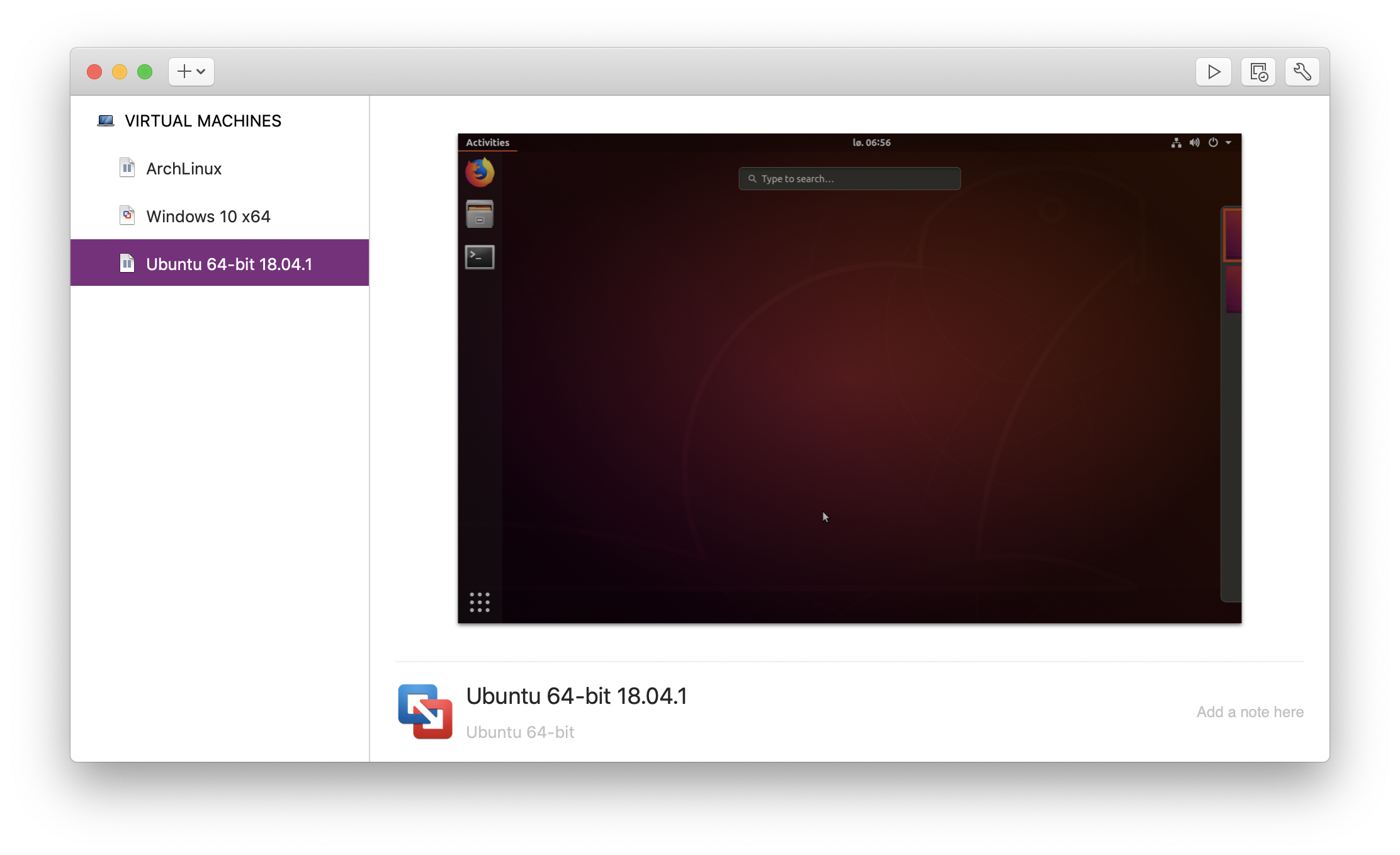
This method works great, unless, of course, you need to test something like FileVault or setting a firmware password, which can only be tested properly on real hardware. You should exempt the VM from policies enabling FileVault, as the image might stop working when those policies are activated.
Also check out VMWare’s snapshots feature if you haven’t already. Snapshots enables you to quickly roll the virtual machine back to an earlier state during testing.
Updated June 2, 2019: This tutorial should work with 10.14.4 and earlier versions of Mojave. Though I haven’t yet tested whether connecting to DEP works on 10.14.5, creating the image does work.
Thanks to the people who have written on the process before me and the software developers.
Updated October 3, 2019: Corrected some dashes that WordPress mangled by placing a gist there to show the vfuse command, so it will work if you paste it into your shell.
 SoundSnw